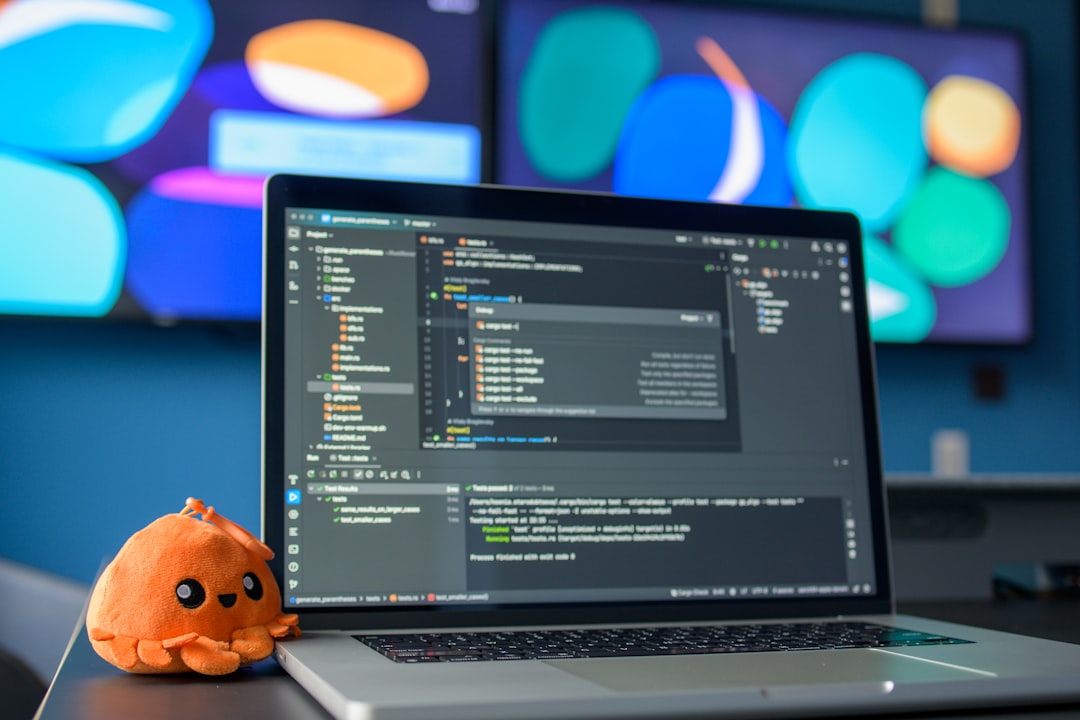
This Windows developer setup checklist gives you a repeatable way to prepare and maintain a machine for web, desktop, and mixed Windows/Linux projects. It covers system preparation, package managers, Git, runtimes, WSL2, Windows Terminal, PowerShell, backups, and the checks that prevent small configuration problems from becoming workflow interruptions.
Overview
A productive Windows development environment is less about installing every available tool and more about making a few deliberate choices. Decide where projects will live, which shell you will use, how applications will be installed, and whether a project needs native Windows tools, Linux tooling through WSL2, or both.
Before changing the machine, record the intended stack. A web project might require Git, a code editor, Node.js, a package manager, a browser, Docker or another container workflow, and a database client. A .NET desktop project may need an IDE, a specific SDK, Windows SDK components, and signing tools. A Linux-oriented backend project may benefit from keeping its source inside the WSL2 filesystem and using Linux command-line tools there.
Keep a small setup file under version control or in a private backup location. It can contain application identifiers, preferred editor settings, shell aliases, runtime versions, and links to official installers. Do not place passwords, private keys, access tokens, or production connection strings in it.
Checklist by scenario
For a new Windows machine
- Install available Windows updates, restart when required, and confirm that the machine has enough storage for source trees, dependency caches, SDKs, virtual machines, and build artifacts.
- Use a standard developer account for daily work where practical. Reserve elevated permissions for installations and administrative tasks.
- Turn on file extensions in File Explorer and choose a predictable workspace such as
C:\srcor a dedicated development drive. Avoid placing active repositories in synchronized folders unless the project has been tested with that synchronization workflow. - Install Git and configure your identity, credential method, default branch preference, line-ending behavior, and signing approach if your team requires signed commits.
- Choose a package manager. The Windows package manager commonly available through Microsoft tooling is convenient for application discovery and upgrades. Chocolatey can suit teams already using its package conventions and scripts. Scoop is useful for users who prefer user-scoped command-line installations. Check each tool's current documentation and your organization's policy before standardizing.
- Install a code editor or IDE. For Visual Studio, select only the workloads and SDK components required by your projects. For VS Code or another editor, add extensions gradually and review their permissions and maintenance status.
- Install runtimes deliberately: for example, the required .NET SDK, Node.js version, Java distribution, Python version, or database client. Prefer a version-management approach when several projects require different versions.
For a WSL2-based web or backend workflow
- Enable the Windows features required for WSL2 and virtualization, then install a supported Linux distribution through the documented Windows route. Reboot if Windows requests it.
- Create a Linux user and update the distribution before adding development packages. Keep Linux-native projects under the Linux filesystem, such as your home directory, when file performance and tool compatibility matter.
- Install Git, the shell tools, language runtimes, and project dependencies inside WSL when the application is intended to run in Linux. Avoid mixing Windows and Linux installations of the same runtime without a clear reason.
- Use an editor integration that understands WSL so commands, extensions, and terminals operate in the same environment as the project. Verify that debugging, tests, and formatting run from the intended side of the boundary.
- Use WSLg or a Windows display workflow only when the application needs graphical Linux programs. For common web development, a browser on Windows with a Linux-based server in WSL may be simpler.
For more detail on filesystem placement, networking, and common boundary problems, use the WSL2 development workflow guide.
For a PowerShell and Windows Terminal workflow
- Install or update Windows Terminal through your approved distribution channel, then create profiles for PowerShell, PowerShell 7 if installed, WSL, and any project-specific shell.
- Set a readable font, sensible tab behavior, and a starting directory that does not hide whether you are in Windows or Linux.
- Keep your PowerShell profile short. Add only aliases, prompt customization, helper functions, and environment setup that you understand and can restore.
- Use functions rather than risky aliases for commands that need parameters. For example, a function that opens a repository can validate the path before changing directories.
- Keep reusable scripts in a version-controlled tools directory, but review scripts before running them with administrator privileges.
The PowerShell reference for developers provides a useful companion for profile design and automation.
For desktop and release work
- Install the IDE workloads, compilers, SDKs, emulators, and test tools required by the application rather than copying an entire previous machine.
- Confirm that local builds can locate certificates, native libraries, and environment-specific configuration without exposing secrets.
- Test a clean build and a release build. A successful local debug run does not prove that packaging, signing, or deployment will work.
- Document the signing and verification steps. The Windows code-signing checklist can help separate certificate management from ordinary build tasks.
What to double-check
- Path ownership: Check whether a command is running in Windows, PowerShell, or WSL. Similar-looking paths and environment variables do not always refer to the same files.
- Runtime selection: Run the version command for every important runtime from the same shell used by the project. Confirm that the result matches the project's documented requirement.
- Git behavior: Review line endings, ignored files, credential storage, and repository hooks. Make a test clone and build it from a clean directory.
- Environment variables: Put non-secret machine settings in a documented location. Keep secrets in an appropriate secret store or local mechanism rather than committing them to a repository.
- Network access: Check proxy, VPN, firewall, certificate, and package registry settings. A package installation failure may be a network policy issue rather than a broken project.
- Reproducibility: Pin dependency versions where the project requires repeatable builds, commit lockfiles when appropriate, and document commands for setup, testing, and cleanup.
- Diagnostics: Know where application logs, Windows Event Viewer entries, crash dumps, and debugger symbols are kept. The Windows crash dump analysis guide is useful when a failure extends beyond the application console.
Common mistakes
Installing multiple versions of the same runtime and relying on whichever one appears first in PATH is a frequent source of confusing failures. Use explicit version management or document one supported default. The same caution applies to duplicate Git, Python, and Node.js installations.
Another mistake is treating WSL as a second copy of Windows. A repository can work in one environment and fail in the other because of path conversion, permissions, line endings, file watchers, or native dependencies. Choose the environment that matches the project's execution target and keep tools close to the code they operate on.
Do not copy a large shell profile from an old machine without reviewing it. Profiles can contain obsolete paths, slow startup commands, hidden network calls, or assumptions about installed software. Do not grant administrator rights to routine build scripts, package installers, or downloaded utilities simply to bypass an error.
Finally, avoid testing only the happy path. Clone a repository into a clean location, install dependencies from its documented instructions, run its tests, and verify that a teammate could reproduce the result without access to your personal folders.
When to revisit
Use this checklist before setting up a new machine, onboarding a teammate, moving to a new project, or upgrading Windows, WSL, Windows Terminal, PowerShell, an IDE, or a major language runtime. Revisit it after a package manager changes its installation behavior, after a project changes its supported versions, or when builds become slow or inconsistent.
A practical maintenance cycle is:
- Monthly or at a convenient maintenance point: review pending application and runtime updates, remove unused SDKs, and check available disk space.
- Before a major project milestone: test a clean checkout, confirm the required runtime versions, validate build and test commands, and back up important local configuration.
- Before replacing or resetting the machine: export editor settings where appropriate, record package lists, copy personal scripts, verify repository remotes, and revoke or rotate credentials that should not move to the new system.
- After a failed upgrade: capture version output and error logs before uninstalling components. Restore the last known working configuration only after identifying which boundary changed.
Keep the final setup checklist with the project or team documentation, update commands when stable tool behavior changes, and mark assumptions that are specific to one machine. A small, maintained record is more useful than a perfect one-time setup.